Sales features – what they do and how they help your business
This guide describes each sales-related feature in simple language. No technical knowledge required.
Leads
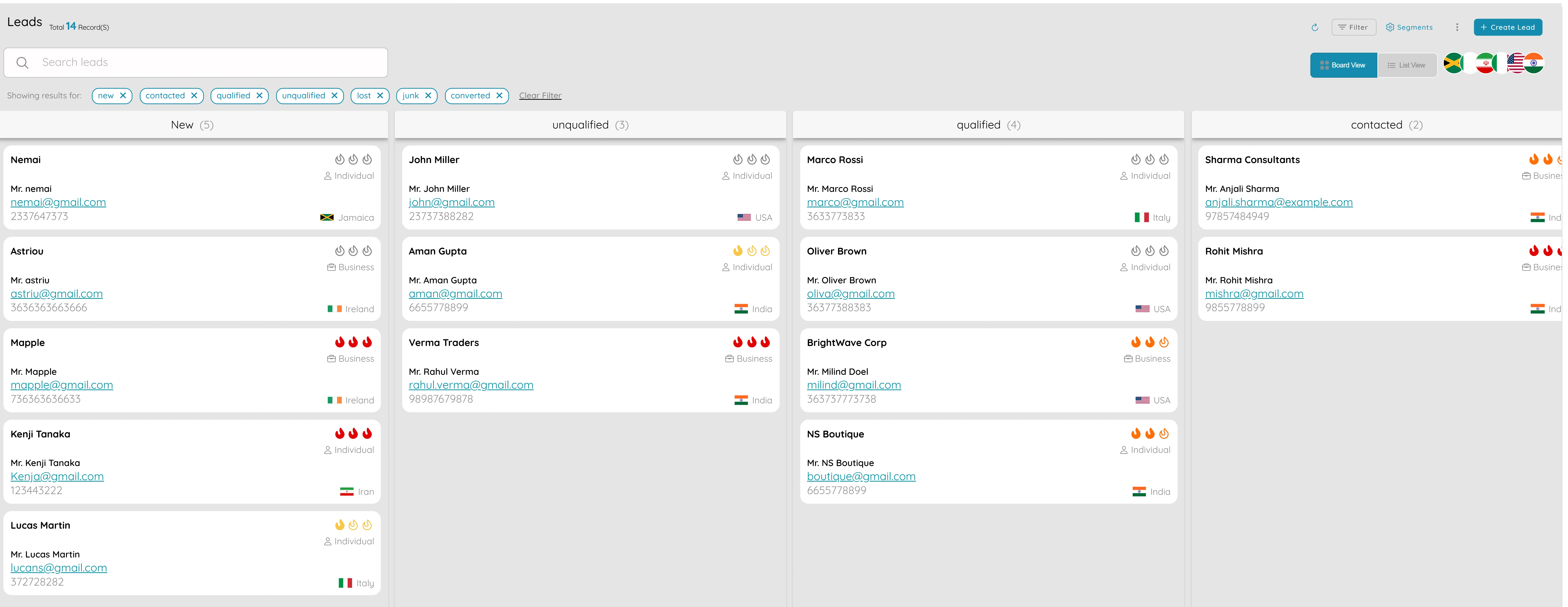
Capture and Qualify Every Potential Customer
- Keep all enquiries and opportunities in one place so nothing slips through the cracks
- Store name, contact details, source (website, referral, event), and custom fields
- Assign leads to team members, add notes and follow-up dates
- Track status—new, contacted, qualified, or converted—so everyone knows the stage
- Filter and search leads by source, status, or date to prioritize and plan
- Convert lead records to clients so history stays in one place
- Move smoothly from enquiry to proposal to order and invoice
Why it matters
Leads become the starting point of your sales process: capture once, qualify in one list, and move smoothly from enquiry to proposal to order and invoice. Having one lead list makes it easy to see who needs a follow-up and who is ready to turn into a proposal or client.
Proposals
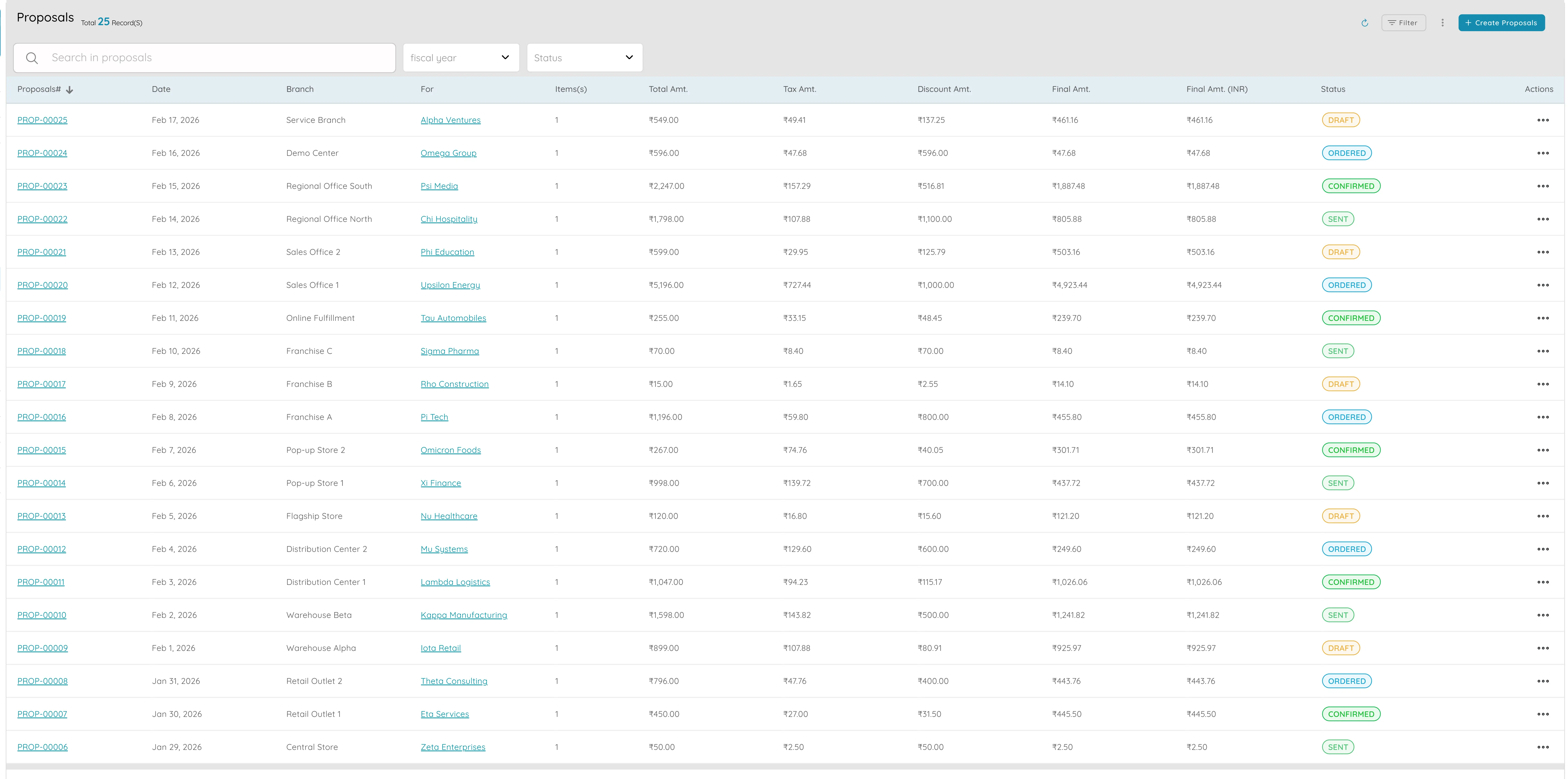
Professional Quotes That Convert
- Create and send professional quotes to customers with ready-made layouts
- Each proposal gets a unique number (such as PROP-2025-001) for clear paper trail
- Add line items for products or services, apply taxes and discounts
- System calculates total and shows it on the proposal
- Send proposals straight from the app by email with delivery tracking
- Convert proposals to orders or invoices in one step when accepted
- Set payment terms and legal text once in settings for consistency
Why it matters
Proposals bridge the gap between "we quoted this" and "we invoiced and delivered it," so you spend less time on admin and more on closing deals. The link from proposal to order to invoice keeps the thread intact for reporting and reconciliation.
Orders
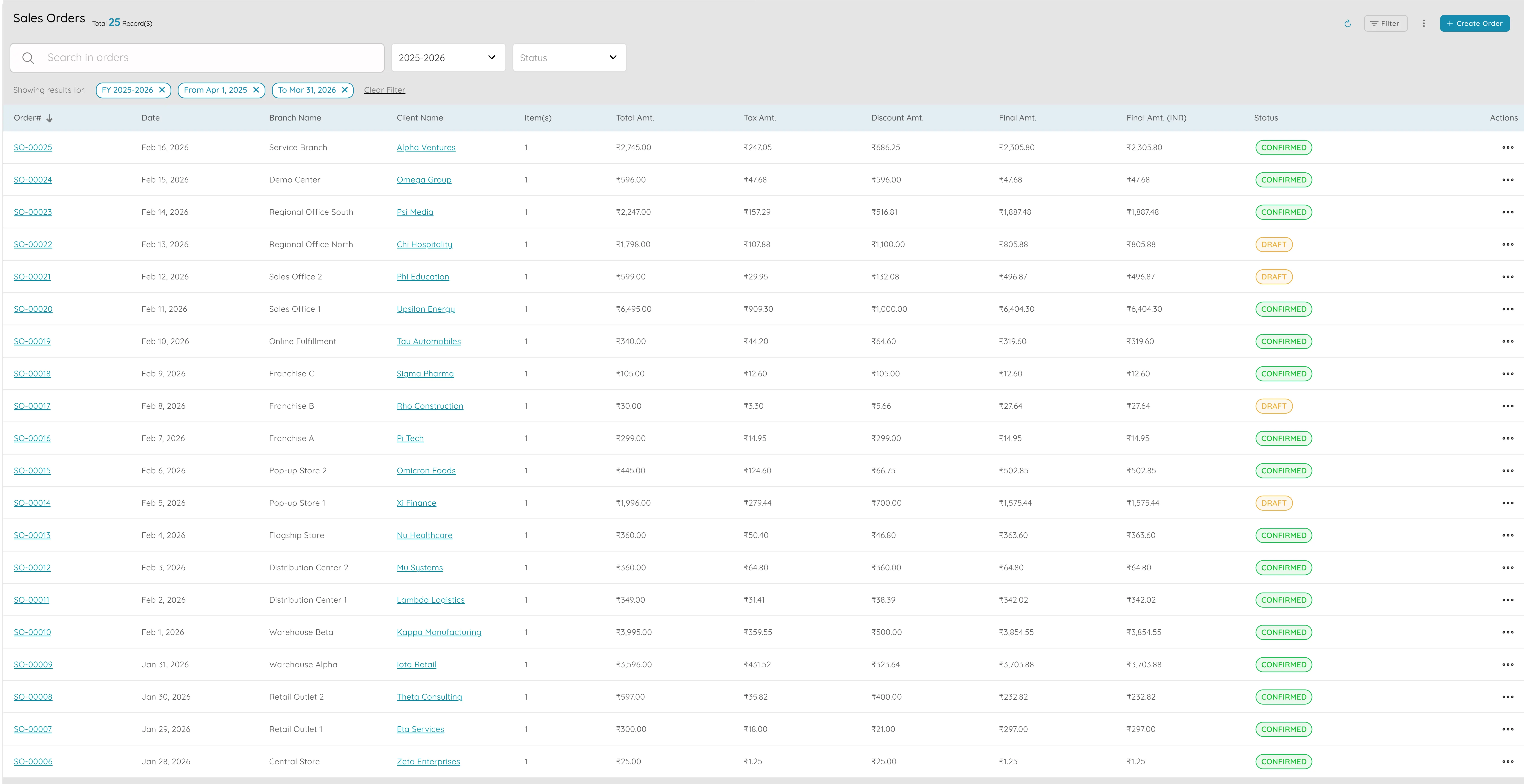
Record Confirmed Customer Orders
- Record confirmed customer orders and link them to invoices and fulfilment
- Create orders with line items, quantities, and prices from proposals or scratch
- Each order gets a unique number for reference on invoices and delivery notes
- Track order status (confirmed, in progress, or fulfilled)
- See which orders have been billed and which are still open
- Record fulfilment so you have clear history of what was sold and delivered
- Filter and search to see what is due for delivery and what is overdue
Why it matters
Orders become the central record of what the customer has bought from you. They support forecasting (how much is in the pipeline), operations (what needs to be fulfilled), and finance (what has been invoiced and paid).
Invoices
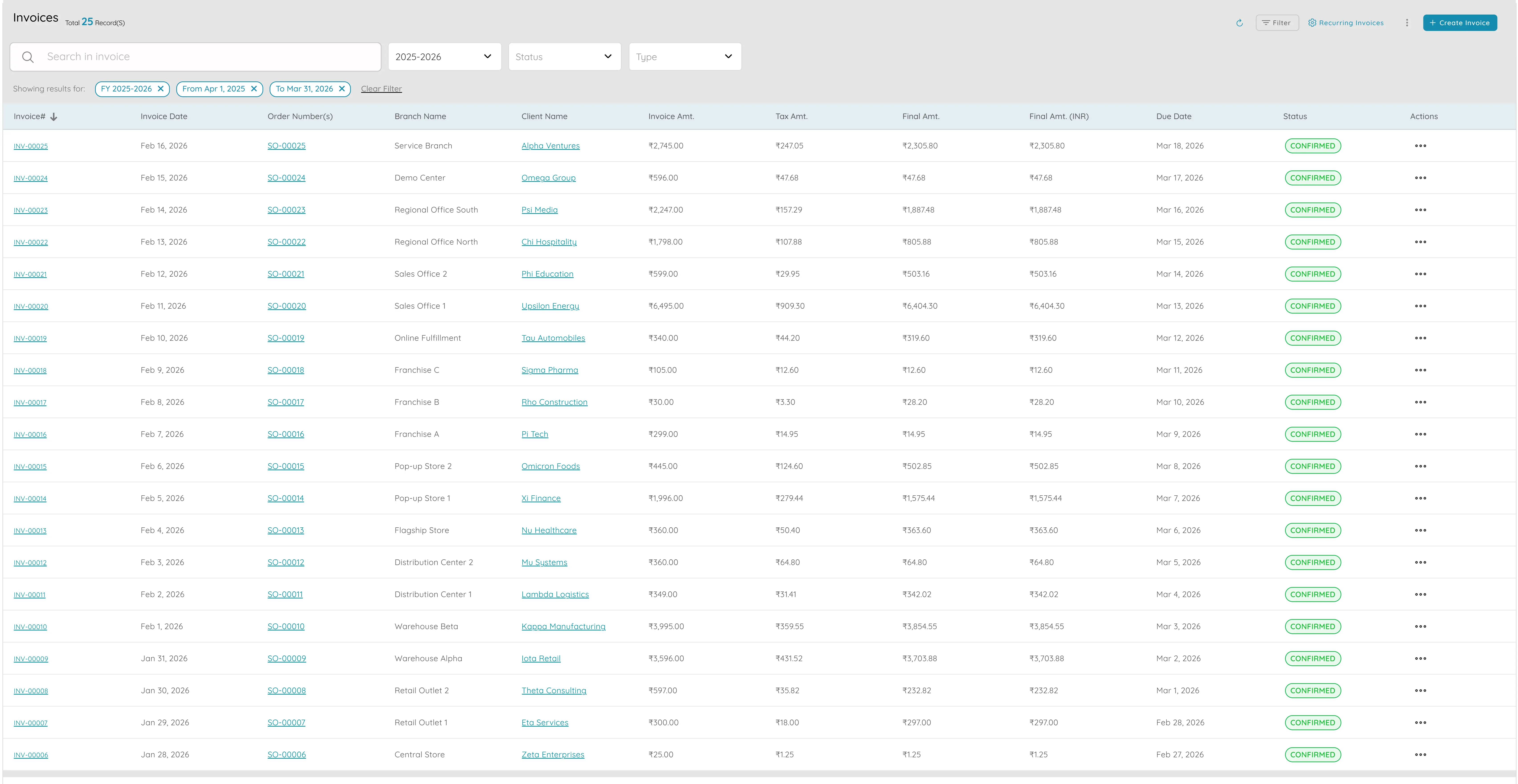
Bill Customers with Correct Tax and Payment Terms
- Create invoices from orders or from scratch with line items for products or services
- Apply the right tax (GST, VAT, or other) so you stay compliant
- Include bank details and payment instructions on invoices
- Set payment terms (Net 30 or due on receipt) so due dates are clear
- Each invoice gets a unique number for matching to orders and payments
- Send invoices by email from the app with delivery tracking
- See which invoices are open, overdue, and outstanding per customer
Why it matters
Invoices feed into the client ledger so you always see what each customer owes and what has been paid. Using a consistent format and branding on every invoice makes you look professional and makes it easier for customers to pay.
Credit notes and debit notes
Adjust Invoices Without Losing the Link
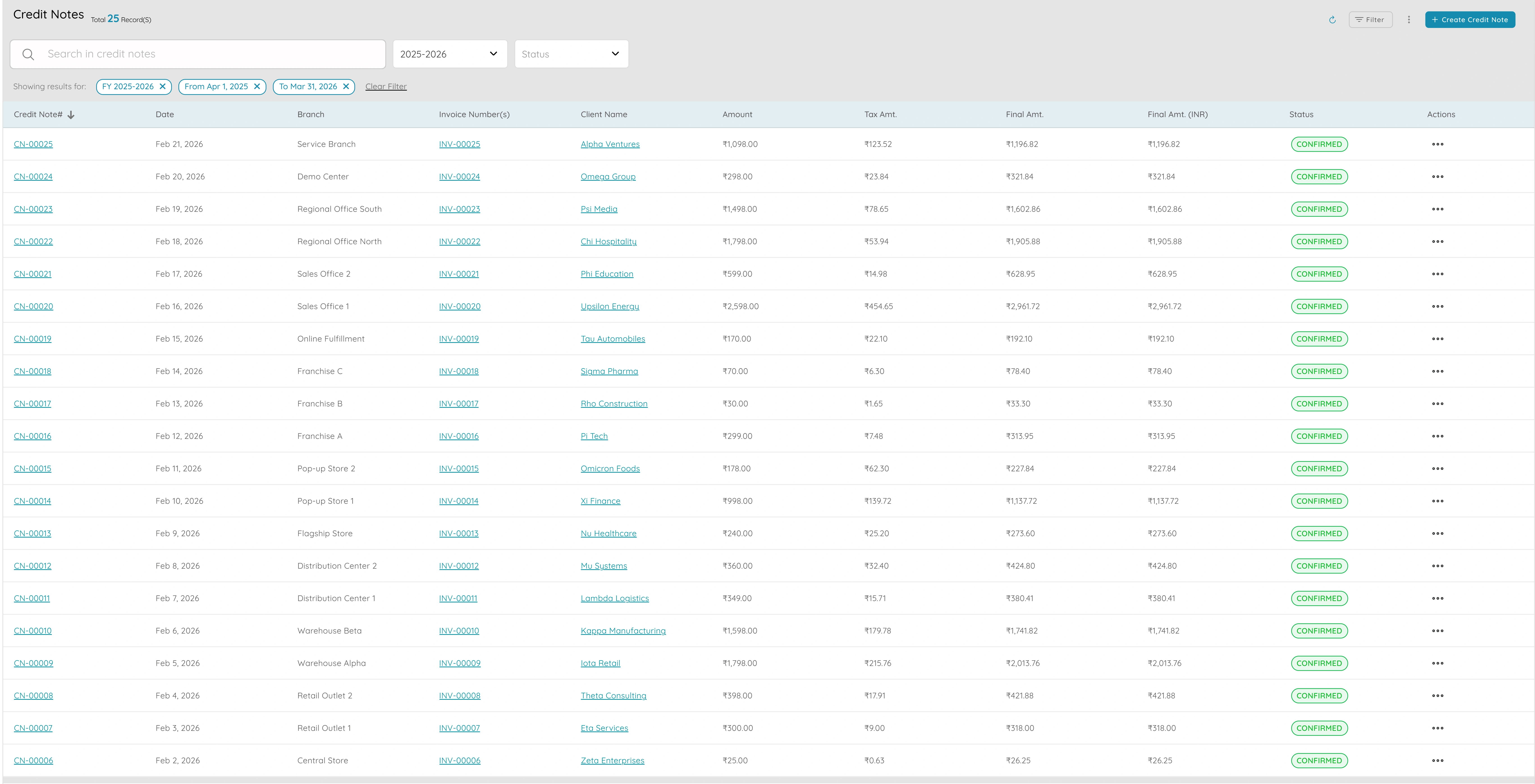
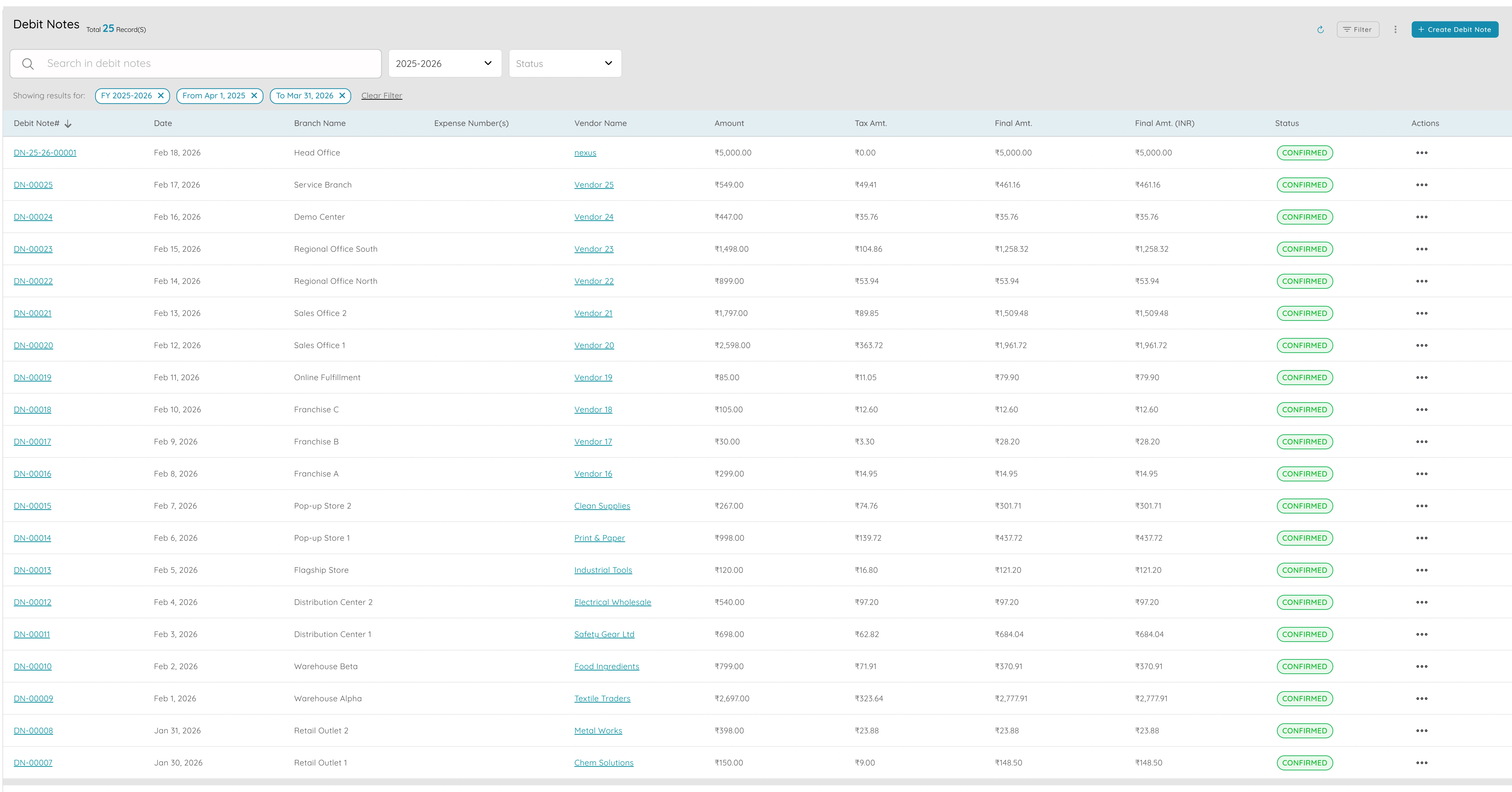
- Credit notes reduce what the customer owes (returns, discounts, corrections)
- Debit notes increase what they owe (missed items, additional charges)
- Each note is linked to the relevant invoice and client
- Keep clear history of what was billed, adjusted, and what customer actually owes
- Apply credit notes against future invoices or specific open invoices
- Same numbering and branding as invoices keeps records tidy
- Credit and debit notes included in reports and client ledger for accurate balance
Why it matters
They support returns and corrections without breaking the link between order, invoice, and payment, so your sales and accounts stay in sync. When you run reports or look at the client ledger, credit and debit notes are included so the balance you see is always the true amount the customer owes.
Clients and client ledger
See Balance and Payment History Per Customer
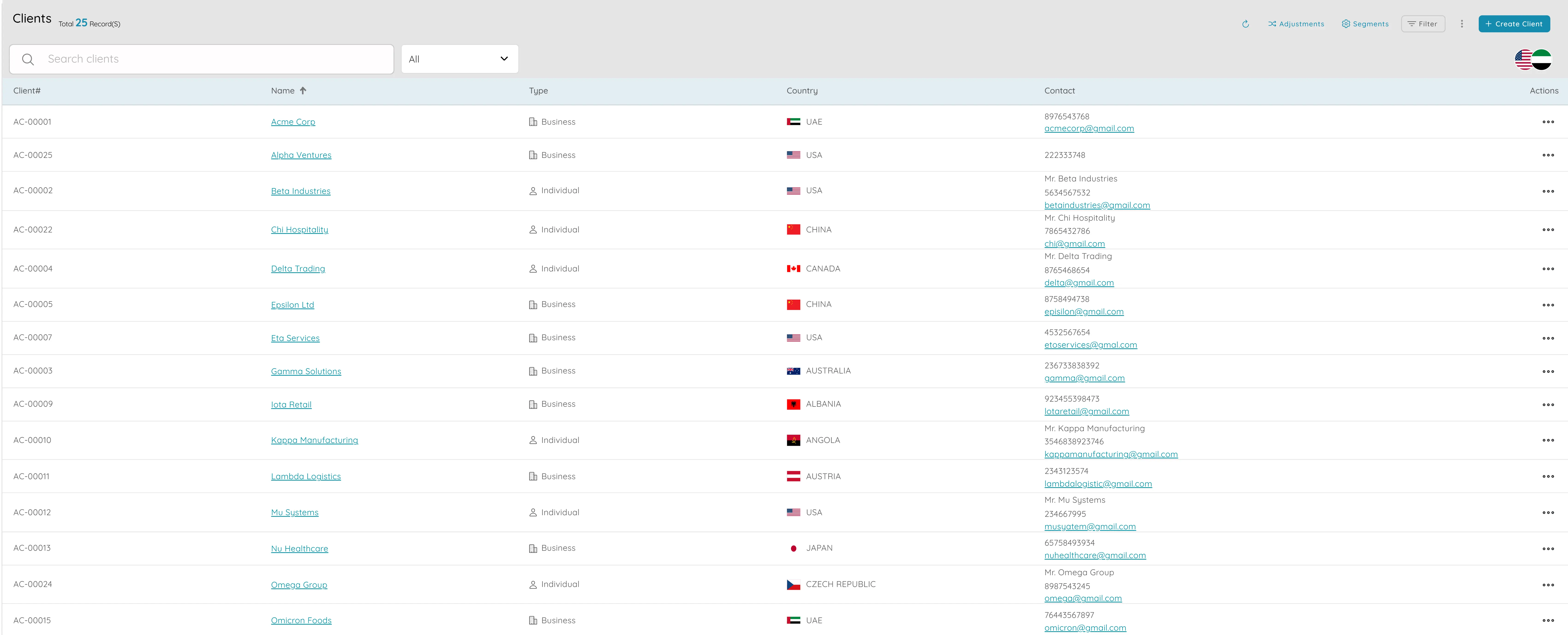
- Store contact details, address, payment terms, and custom fields per client
- Client ledger shows all invoices, payments, credit notes, and debit notes
- See current balance and ageing (30, 60, or 90 days overdue)
- Open ledger from client record to see "how much does this customer owe?"
- View full history: what they bought, what was billed, and what is paid or overdue
- Single view supports both sales (relationship, follow-up, upsell) and finance (receivables)
- Answer "what do our top clients owe?" or "which invoices are overdue?" in one place
Why it matters
The client list and ledger become the central view of the customer for your entire sales and collections process. Sales can see the full relationship and plan follow-up or upsell, while finance can manage receivables and chase the right customers at the right time.
Payments
Record and Track Customer Payments
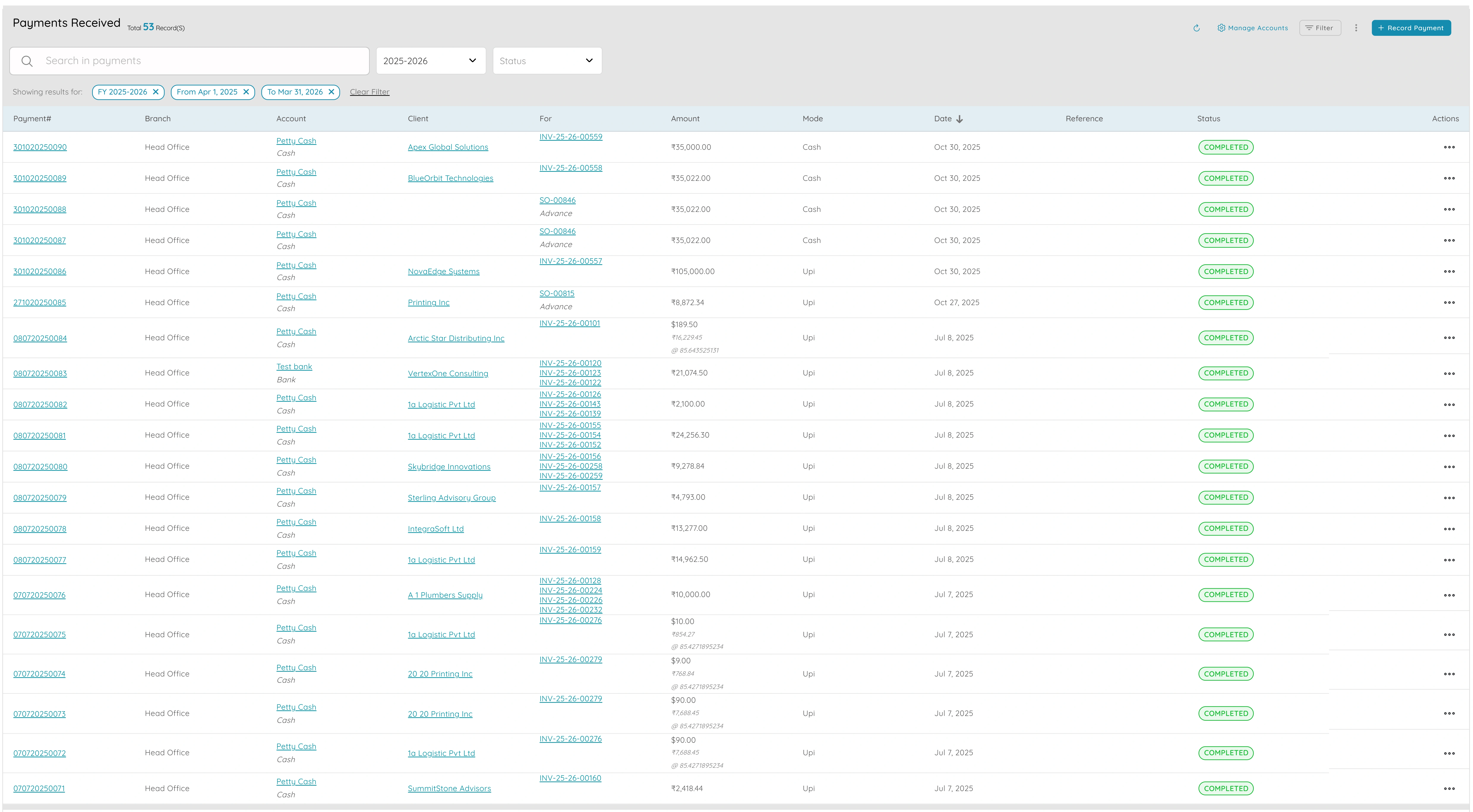
- Record customer payments by bank transfer, card, or other method
- Link payments to correct invoice or invoices (or leave as advance)
- Payment updates client ledger and invoice status automatically
- Split one payment across multiple invoices or apply one invoice across multiple payments
- Every payment linked to client and relevant invoices for audit trail
- Record payment method and date for full history and reporting
- Run payments report by date range or by client for reconciliation
Why it matters
Payments turn "the customer said they paid" into a clear, auditable record so your books stay accurate and you know exactly who has paid and who still owes you. You can quickly answer "did this customer pay invoice X?" and use the same data for bank reconciliation.
Reports
Support Forecasting, Targets, and Commissions
- Sales by client shows revenue and activity per customer
- Sales by product shows revenue and quantity sold per product
- Sales by month or quarter for period comparisons and seasonality
- Filter by client, product, date range, or other dimensions
- Export reports for presentations or meetings
- Answer questions like "which clients drove the most revenue this quarter?"
- Set targets, plan commissions, and forecast with real data
Why it matters
Having these reports in one place, with consistent filters and the ability to export, means you spend less time pulling numbers from different places and more time interpreting them. They become the evidence you need for sales reviews, target setting, and commission calculations.
.webp)
.webp)
Invoice settings and payment receipt settings
Control How Your Documents Look
- Choose from several templates for invoices and receipts
- Set logo, business name, address, and contact details once
- Configure how invoice and receipt numbers are generated (INV-2025-001)
- Add standard notes, terms, or payment instructions that appear on every document
- For payment receipts, choose what to show (invoices paid, payment method, balance)
- Consistent, professional documents build trust and reduce customer questions
- Team can send invoices and receipts without re-typing the same information
Why it matters
Invoice and receipt settings put your branding and your rules in one place so every customer-facing document looks right and says the right thing. Having consistent, professional documents builds trust and reduces questions from customers.
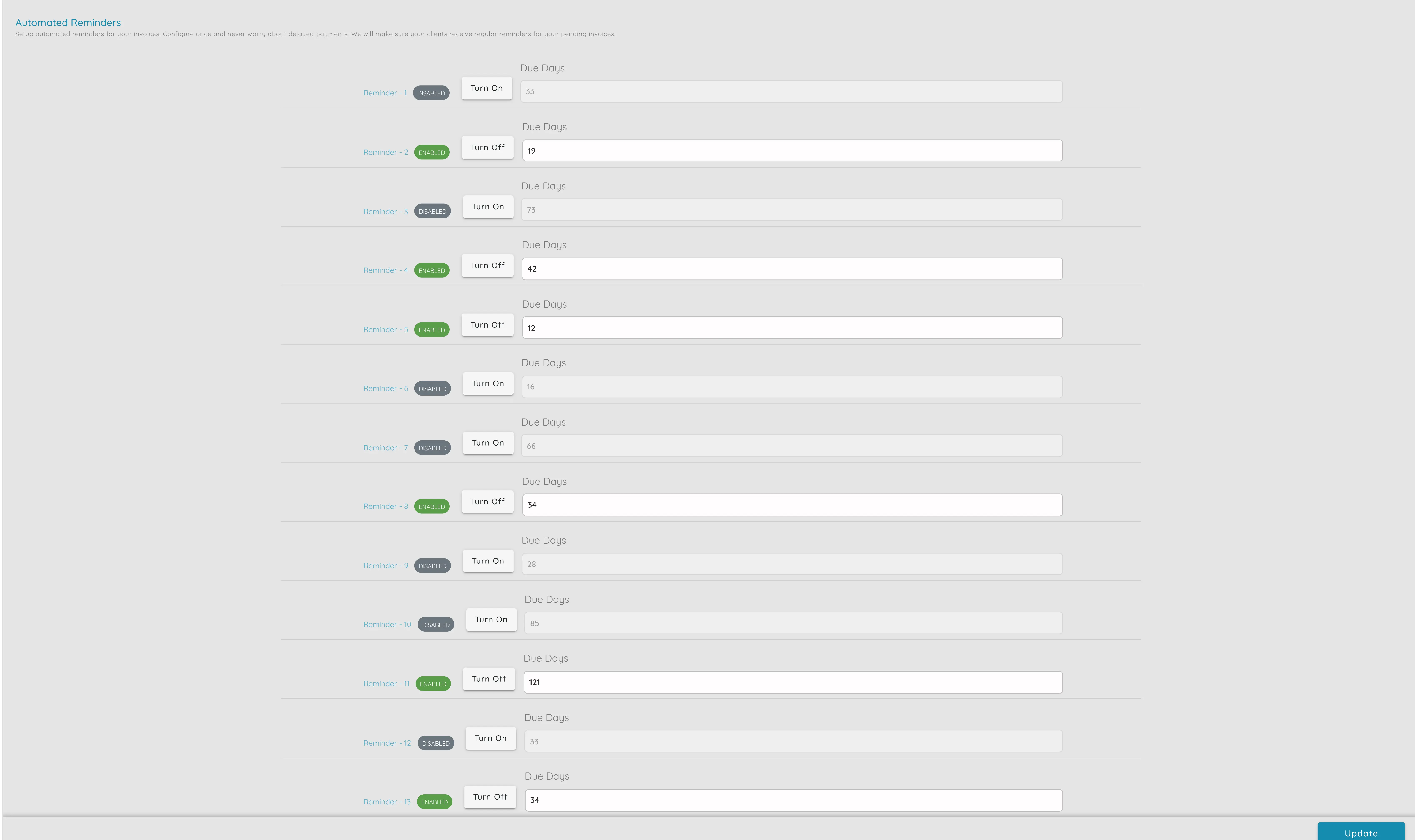
Automated reminders
Send Payment Reminders for Overdue Invoices
- Set up rules so overdue invoices trigger reminder emails automatically
- Schedule series of reminders (7 days, 14 days, 30 days overdue)
- Reminders use your branding and can include link to view or pay invoice
- Reduces time team spends on "have you paid?" calls and emails
- See which invoices are overdue and follow up in person when needed
- Turn reminders on or off per client or per invoice type
- See in system when reminder was last sent so you know what has been done
Why it matters
Automated reminders turn "we should chase this" into "the customer has already been reminded," so you get paid faster and keep relationships professional. That reduces the time your team spends on follow-up and often speeds up collections.
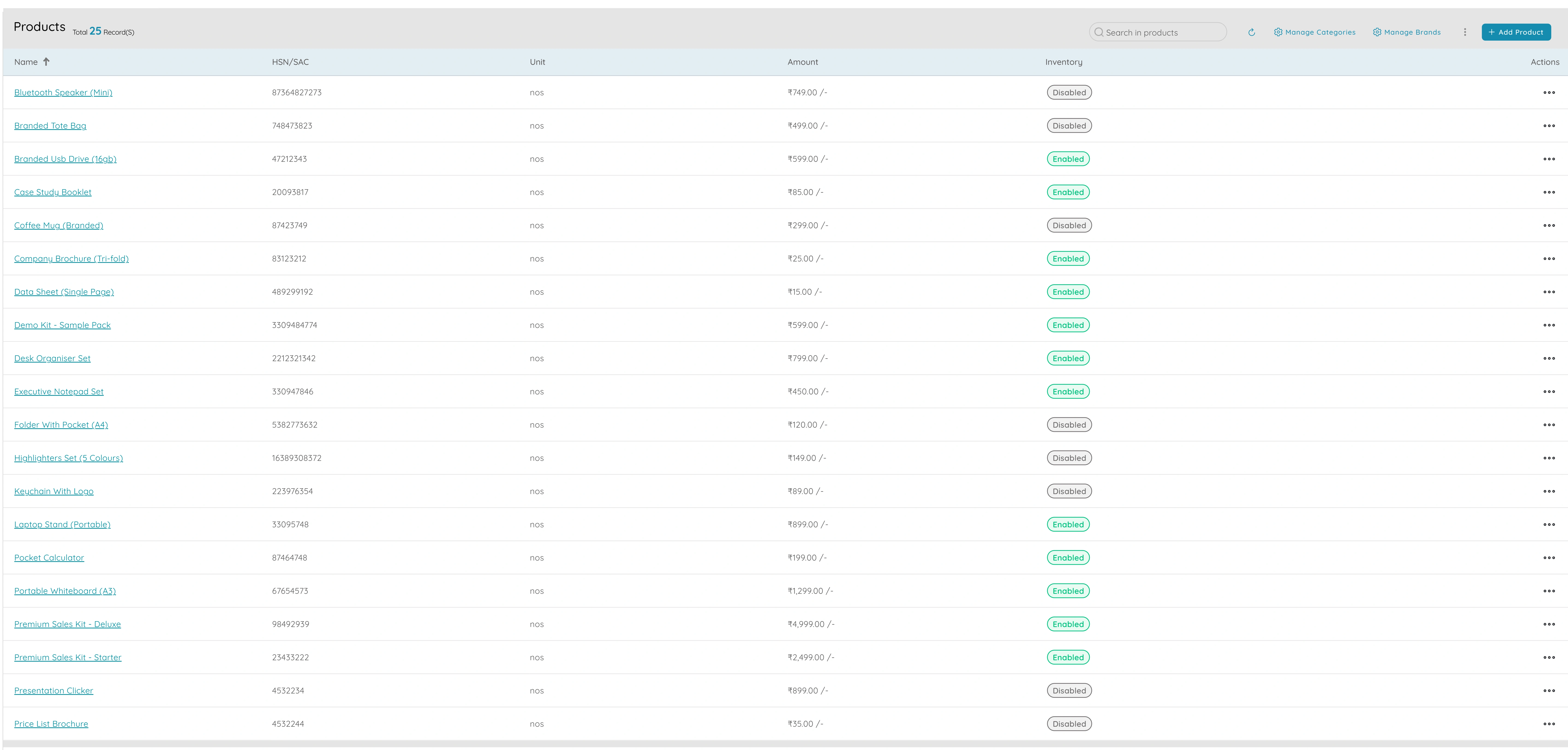
Products and services
Keep a Consistent Catalogue
- Create one record per product or service with name, description, unit, price, and tax
- Pick from catalogue when adding line items to proposals or invoices
- Reduces errors and keeps pricing and tax consistent
- Organize products into categories for filtering and reporting
- Decide whether to update existing documents when prices change
- Single catalogue makes it easier to train new staff and run reports
- New products available immediately for use in quotes and invoices
Why it matters
Products and services become the single source of truth for your offering so that proposals, orders, and invoices all speak the same language. Having a single catalogue makes it easier to train new staff, run reports by product, and keep your sales and finance teams aligned.
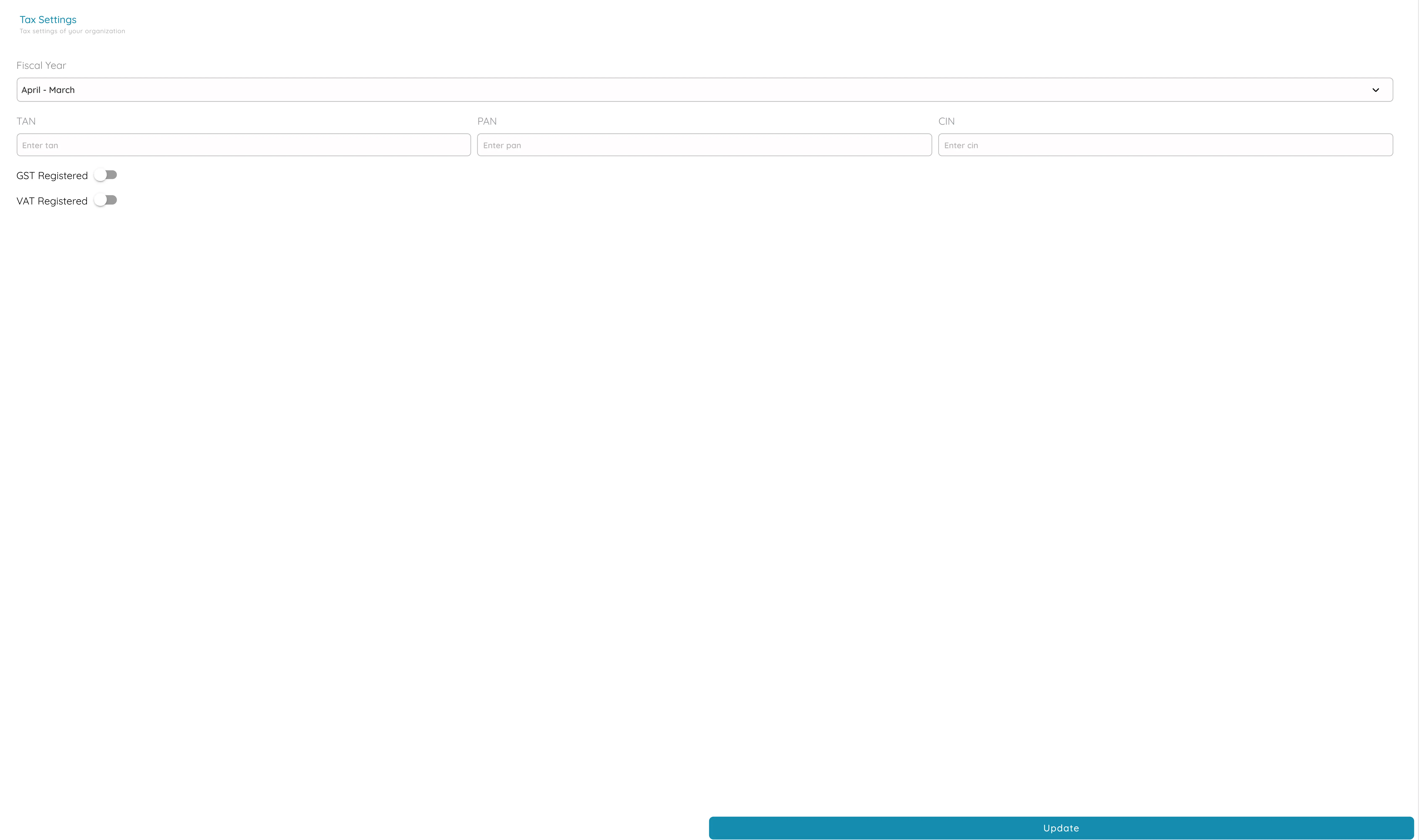
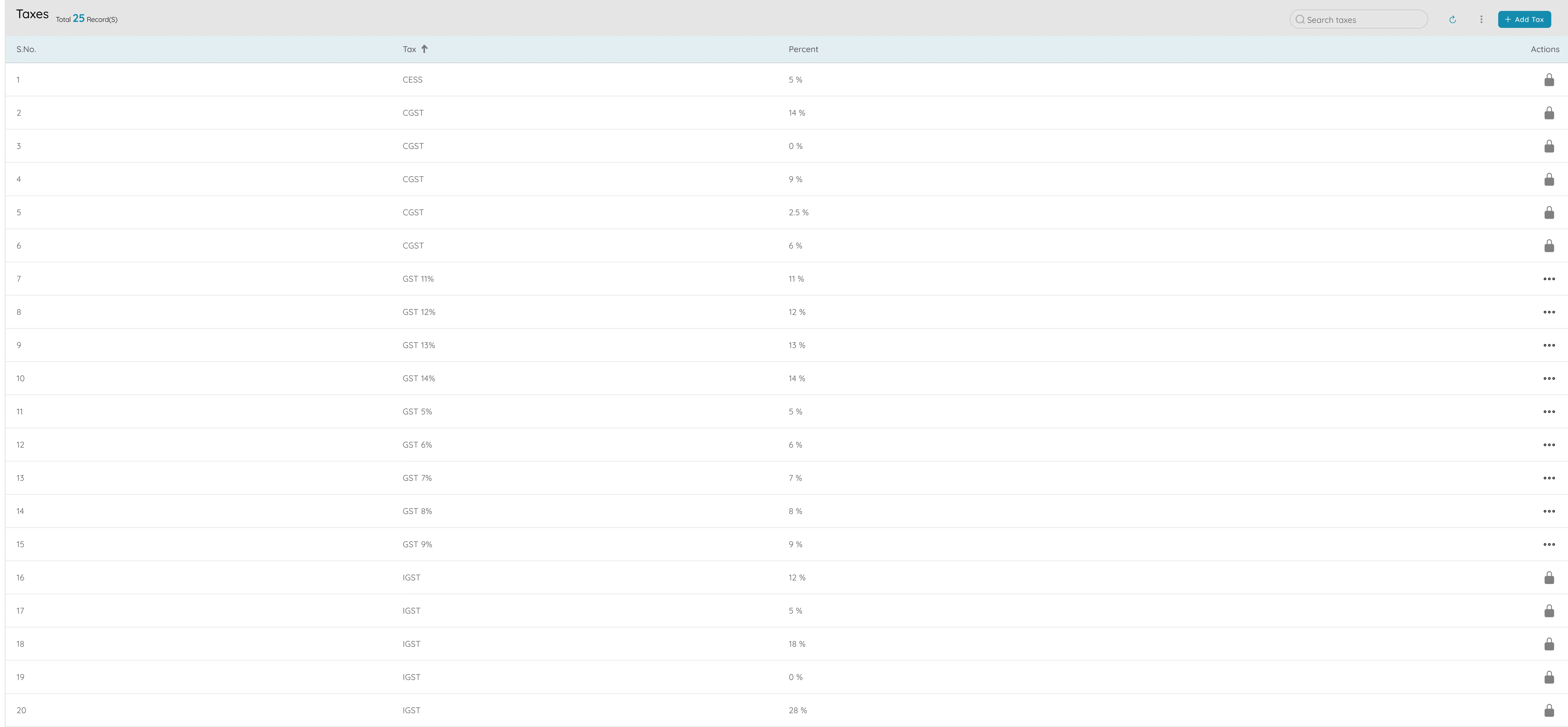
Tax settings and taxes
Apply Correct Tax on Every Invoice
- Define your taxes once (GST at 18%, VAT at 20%, etc.)
- Attach taxes to products or services or apply at line or document level
- System calculates tax based on your rules automatically
- Set different taxes for different types of supply or regions
- Every invoice is consistent with your tax obligations
- Support correct reporting at month-end or year-end
- Reduce risk of errors that could lead to penalties or disputes
Why it matters
Tax settings and taxes ensure that every invoice is consistent with your tax obligations and with what the customer expects to see. Tax settings put your tax rules in one place so that every sale is treated the same way and your books are ready for audit.
Supercharge your sales operations.
Automate lead-to-order workflows and maximize revenue.